Website Builder > Essentials
Next.js Stater Kit
Learn how to integrate our Next.js starter kit with Website Builder.
- how to link your Website Builder with our Next.js starter kit
Webiny’s Website Builder incorporates a drag-and-drop visual editor allows you to use custom front end of your choice. We recommend Next.js. To get our users up and running as quickly as possible we put together a sample Next.js project.
In this tutorial, we will learn how to link your Webiny project to the Next.js starter kit
We will do this in a few simple steps:
- Step 1: Fork the Next.js starter kit repository
- Step 2: Switch to the appropriate branch
- Step 3: Create and populate your .env file
- Step 4: Establish connection
- Step 5: Validate connection
- Optional information and actions
What's Included in the Starter Kit
- TypeScript
- Tailwind CSS
- Sample ecommerce API
- Sample components
- Sample component groups
This project uses Next.js App Router!
Step 1: Fork the Repository
Use your tools of choice and fork the Next.js Startet kit repository
✔️ The project structure should be already visible in your editor.
Step 2: Switch to the Appropriate Branch
Step 3: Create and Populate Your .Env File
- Create a new file in your project root called
.env
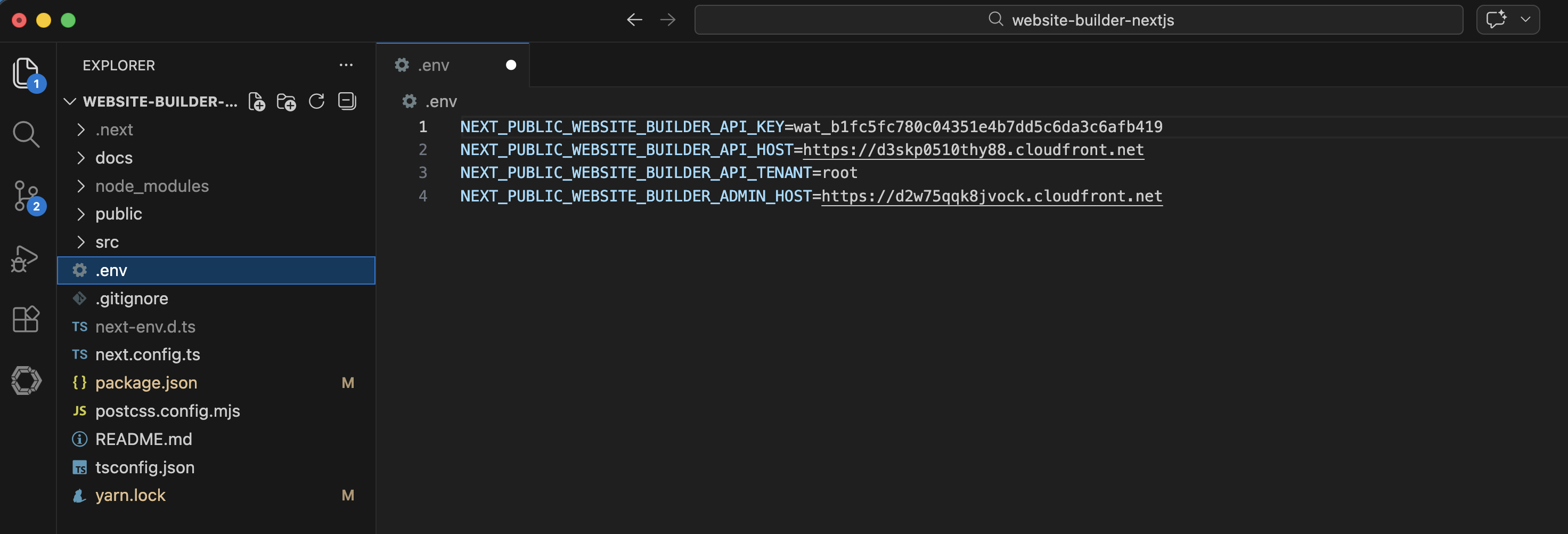 Example .env file with dummy data
- Add the correct variables from your Webiny project.
A user can find them in the Webiny Admin app, click on the Support link in the bottom left corner, and then select Configure Next.js. This is a configuration specifically generated for Webiny Next.js starter kit. Simply copy the values in your .env file in the Next.js starter kit and SAVE.
✔️ The following environment variables are saved in the .env file:
- Ensure that in the
package.jsonthe"@webiny/website-builder-nextjs":has the right Webiny version against it, e.g. “6.0.0”
Step 4: Establish the Connection
In the Next.js project root, run:
✔️ This will build your dependencies.
✔️ It establishes the connection between your Next.js app and the Webiny project thanks to your env variables.
✔️ It starts the Next.js in development mode on localhost:3000. It enables hot reloading, detailed error overlays, and source maps for fast iteration on your project.
Step 5: Validate Connection
In the Website builder, try creating a new page. If the default components and header load properly, then the connection is established properly.
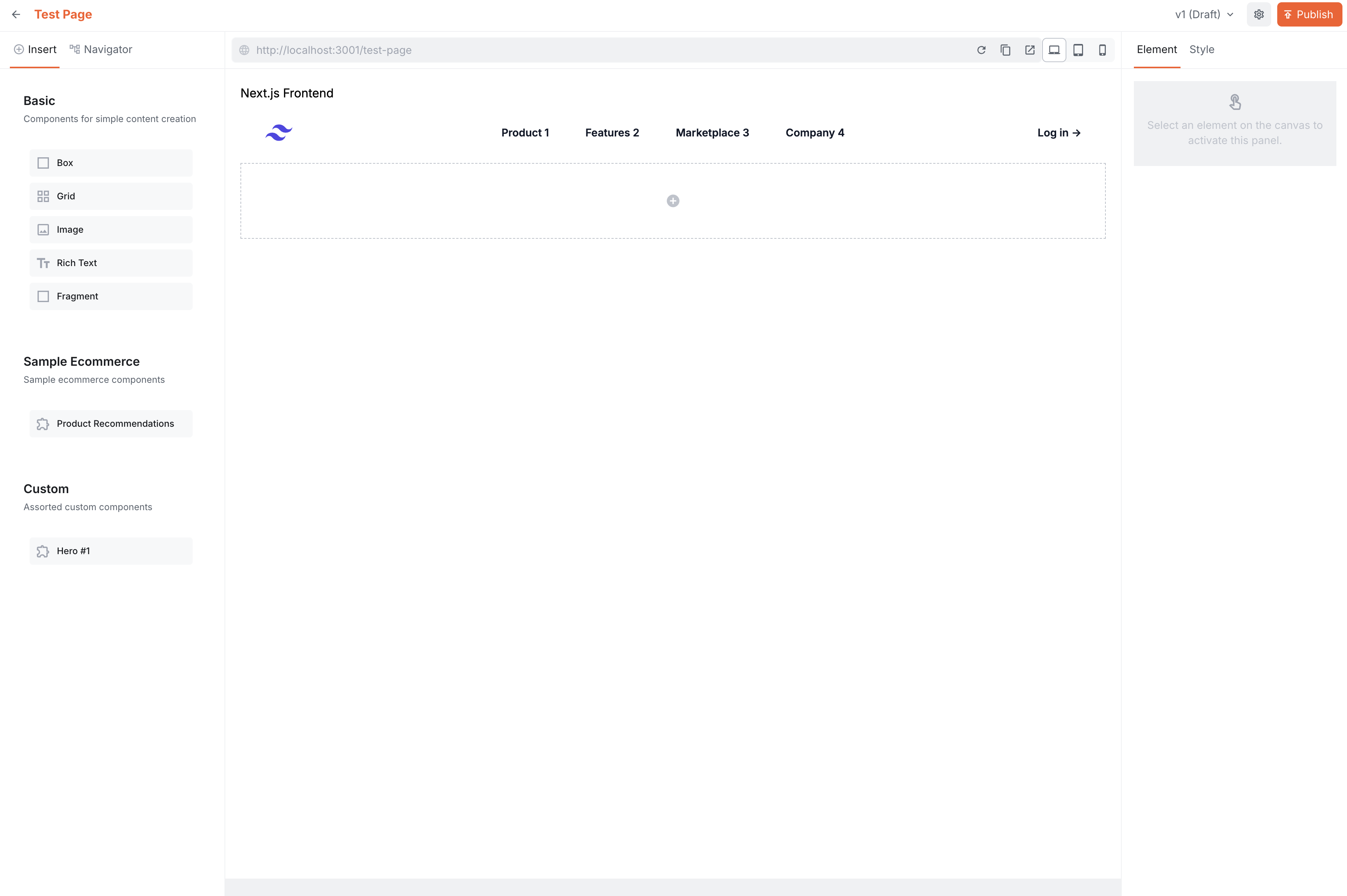 New Website Builder Page
Note: If there are any issues, ensure that there are no warnings in the Next.js project after the start of the dev mode. For example, if you are running something else on http://localhost:3000 the app will automatically use a different port. If this is the case you need to align your Website Builder settings to the same port.
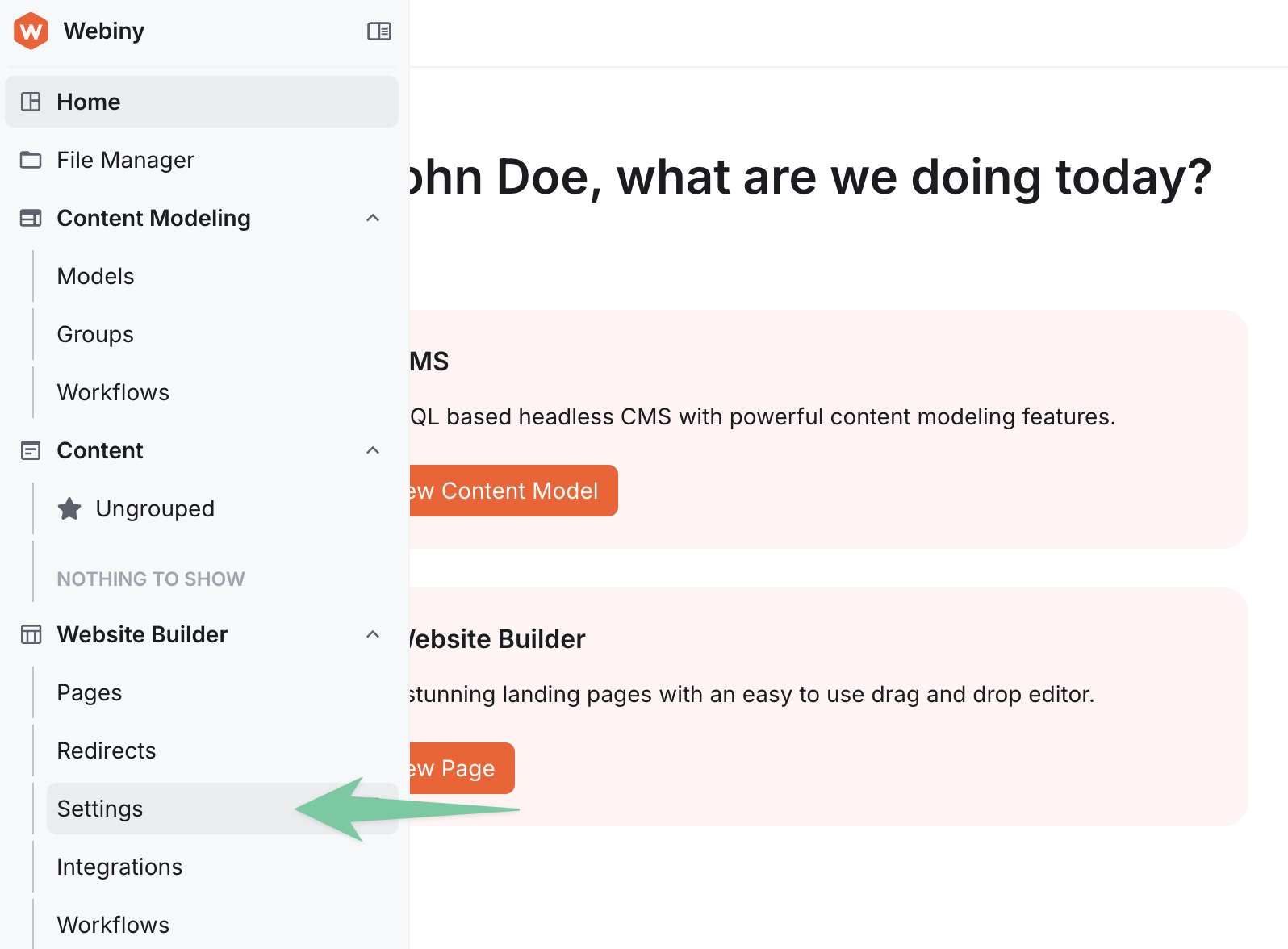 Website Builder Settings
Optional Information and Actions for Developers and Advanced Users
Webiny Admin App Host URL
If you’re using your Next.js project in an editor that is hosted on a domain different from your Next.js domain, you’ll have to whitelist the editor’s domain. You can do that via the NEXT_PUBLIC_WEBSITE_BUILDER_ADMIN_HOST env var (see “Cross-Origin Configuration” section below).
A simple way to retrieve your Admin app host URL is to log in to your Webiny Admin app, and copy the URL from your browser’s address bar (for example: https://dxhy1vkapexg1.cloudfront.net) or using the Support link described above.
Content SDK
Webiny Content SDK is located in src/contentSdk folder. The initializeContentSdk.ts file contains the SDK initialization, and editor component group registration. Customize your component groups here.
Custom Components
Custom components are passed directly to the DocumentRenderer (see the example in ./src/app/[[...slug]]/page.tsx).
To create custom components, see examples in ./src/editorComponents/index.tsx. We also have amore detailed article here covering Custom Components.
Cross-Origin Configuration
If you’re using your Next.js project in an editor that is hosted on a domain different from your Next.js domain, you’ll have to whitelist the editor’s domain.
Open next.config.ts, and add your domain to the Content-Security-Policy header. For example:
Sample Routes
src/app/[[...slug]]- this directory contains an example of simple static page generation, using pages from the Webiny Website Buildersrc/app/product/[slug]- this directory contains an example of Product Details Page (PDP) generation, using a combination of a remote ecommerce API, and optional editorial content.
Website Builder SDK
When you initially clone this repo, @webiny/website-builder-nextjs package in the package.json will be set to *. We recommend you set the version to whatever is the latest version at the time of cloning. Also, keep in mind that it’s preferable to keep this version in sync with your actual Webiny Admin app version, so the Editor SDK and the Contend SDK are on the same version.
Ecommerce Integrations and Component Inputs
Webiny Website Builder provides a way to integrate with your ecommerce platform of choice. Once an integration is enabled in Webiny Admin app, you get access to specialized component input renderers, which allow you to browse and select your ecommerce resources (products, categories, etc.) to assign them to your components in the editor.
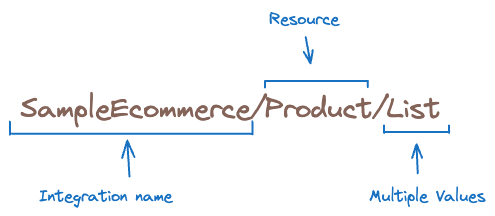
To use a specific renderer in your component inputs definition, you need to follow a naming convention.
Here’s an example, which creates a “text” input, which contains a list of string values, and uses a renderer called SampleEcommerce/Product/List.
Single Resource Picker
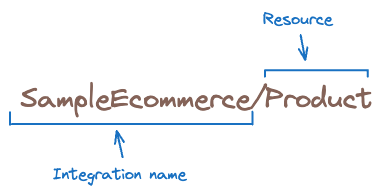 Single Resource Picker
Multiple Resources Picker
 Multiple Resources Picker